
Setting up IPTV on a Samsung Smart TV takes about 15 minutes once you know which app to use. This IPTV Samsung Smart TV guide walks you through every step: checking your TV model, installing an IPTV player from the Samsung app store, loading your playlist with either a MAC address or an Xtream Codes login, and fixing the errors people run into most often. No streaming stick or extra box is needed, because the player app runs directly on your TV.
Samsung TVs are a natural place to do this. Samsung has been the world’s No. 1 TV brand by revenue share every year since 2006, and Samsung’s own announcement cites Omdia research showing a 29.1% share of the global TV market in 2025. That means a lot of living rooms already have the hardware. The only question is how to get an IPTV player onto it.
Key Takeaways
- Samsung Smart TVs run Tizen OS, so you install IPTV player apps from the Samsung app store (Smart Hub), not from APK files.
- The player app is empty on its own. You still need a subscription and your M3U link or Xtream Codes login from your provider.
- Smart IPTV links your playlist to your TV’s MAC address; IPTV Smarters Pro uses a username, password and server URL.
- Most problems come down to an outdated TV firmware, a weak connection, an app that isn’t offered for your model or region, or a playlist URL that doesn’t load.
What Is IPTV and Why Use It on a Samsung TV?
IPTV (Internet Protocol Television) delivers live channels and on-demand content over your internet connection instead of a cable or dish. If you’re weighing it against a dish, our comparison of IPTV vs satellite TV covers cost, reliability and channel choice. It’s also different from general streaming services, which we explain in IPTV vs internet TV.
Most IPTV subscriptions combine live TV with a library of movies and series. If you’re new to the on-demand side, read what VOD (video on demand) is before you pick a plan.
Running IPTV in Samsung TV apps directly has three practical advantages: no extra device to buy, one remote for everything, and full use of your TV’s picture processing.
Requirements: What You’ll Need
- A Samsung Smart TV running Tizen OS. According to the Smart IPTV developer, 2019 and newer Tizen models get the app from the Samsung app store, while 2015–2018 Tizen models need a manual USB install.
- A stable internet connection. As a benchmark, Netflix recommends at least 5 Mbps for 1080p and 15 Mbps for 4K. IPTV has similar needs, and live channels leave less room for buffering.
- An active IPTV subscription. Start with our list of the best IPTV providers, or read about the best legal IPTV providers if licensing matters to you.
- Your login details. This will be an M3U playlist URL or an Xtream Codes username, password and server URL. Not sure which you have? See M3U vs MAC address IPTV explained.
- A Samsung account signed in on the TV, which is needed to download apps.
- A phone or computer for uploading your playlist (Smart IPTV method only).
- A USB drive formatted as FAT32 (optional; only needed for manual installs on older models).
Want to test a service before paying for a full plan? Our guide to IPTV free trials shows what to look for.
Best IPTV App for Samsung TV: Which Player Should You Use?
There is no single best IPTV app for Samsung TV. The right choice depends on the login type your provider gives you and what your TV model supports. These are the two most widely supported options:
| App | Login method | Cost | Best for |
|---|---|---|---|
| Smart IPTV | M3U playlist uploaded to your TV’s MAC address | One-time 5.49 EUR activation per TV | Simple live TV with a single playlist |
| IPTV Smarters Pro (listed as Smarters IPTV Pro on some models) | Xtream Codes API (username, password, server URL) or M3U | Free trial, then device activation | Separate Live TV, Movies and Series sections with an EPG |
Pricing comes from the developers’ own pages: the Smart IPTV activation page lists the one-time fee, and the Smarters IPTV Pro listing in Samsung’s app store describes a one-week trial before activation. Note that neither app includes any channels.
App availability changes by TV model, year and country, so search the store before committing to a provider. Popular players like TiviMate are Android-only; if you also own an Android TV box, see our roundup of the best IPTV player apps for Android.
IPTV Samsung Smart TV Setup: Step-by-Step Instructions
Follow Part 1 on every TV. Then complete either Method A (Smart IPTV) or Method B (IPTV Smarters Pro), depending on the app you choose.
Part 1: Install an IPTV App for Samsung TV
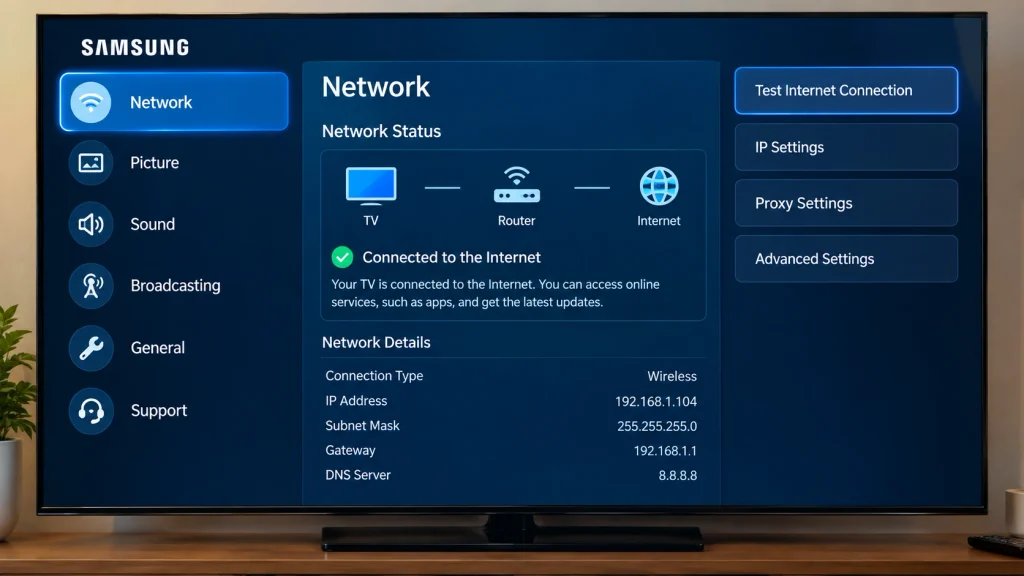
Step 1: Connect Your Samsung TV to the Internet
Go to Settings > All Settings > Connection > Network (on some models, General > Network) and connect by Wi-Fi or Ethernet. Use a wired connection if your router is close by, because it is usually more stable for live channels.
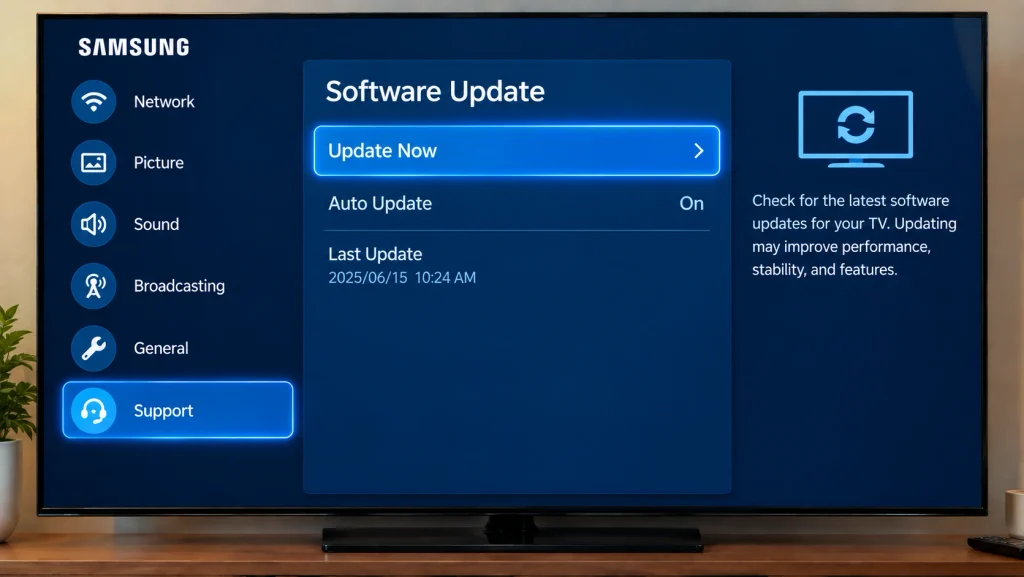
Step 2: Update Your TV Software
Open Settings > All Settings > Support > Software Update and select Update Now. Samsung’s software update guide also shows how to turn on Auto Update so future updates install automatically. Outdated firmware is a common reason an app is missing from the store or fails to play streams.
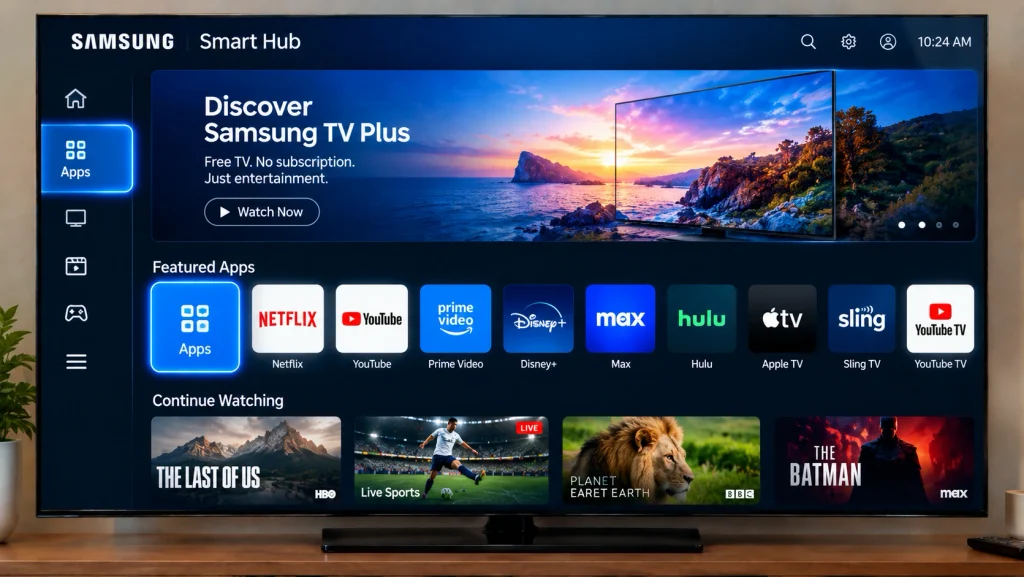
Step 3: Open the Apps Section
Press the Home button on your remote and select Apps from the Smart Hub menu.
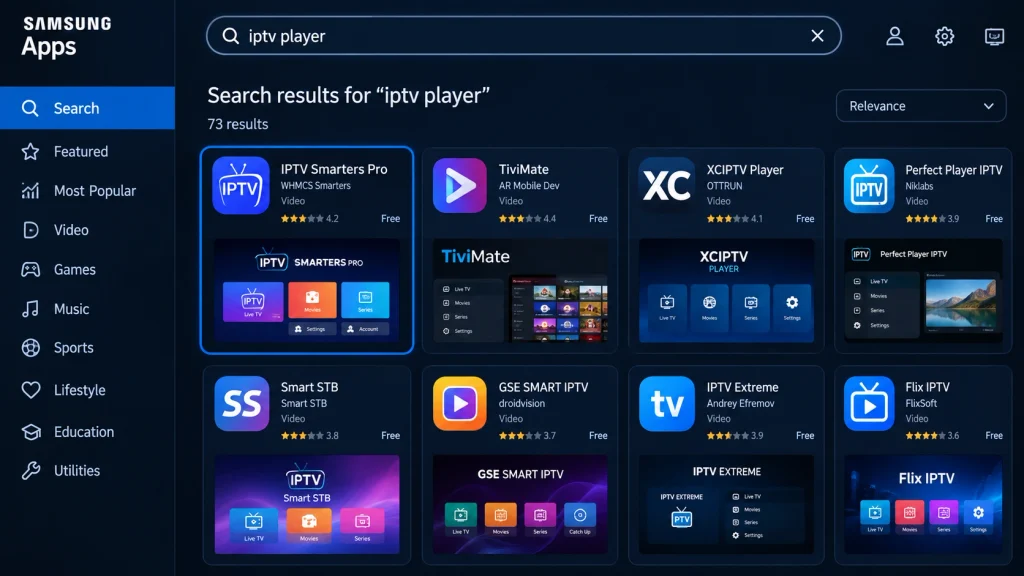
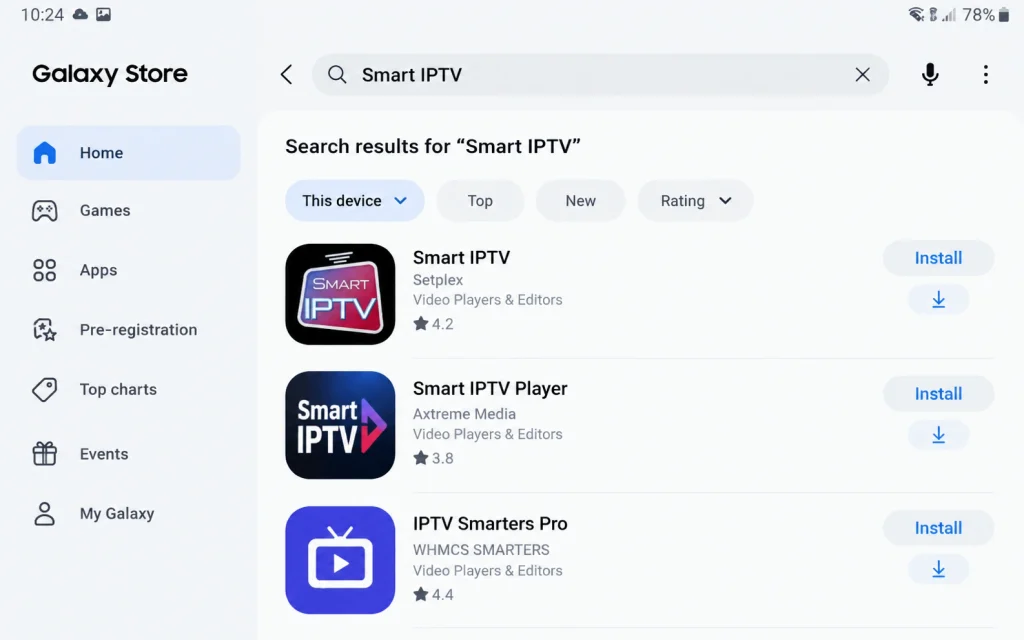
Step 4: Search for a Samsung TV IPTV Player
Select the search icon and type the app name, for example Smart IPTV or IPTV Smarters. If nothing appears, jump to the troubleshooting section below.
Step 5: Install the IPTV Player for Samsung TV
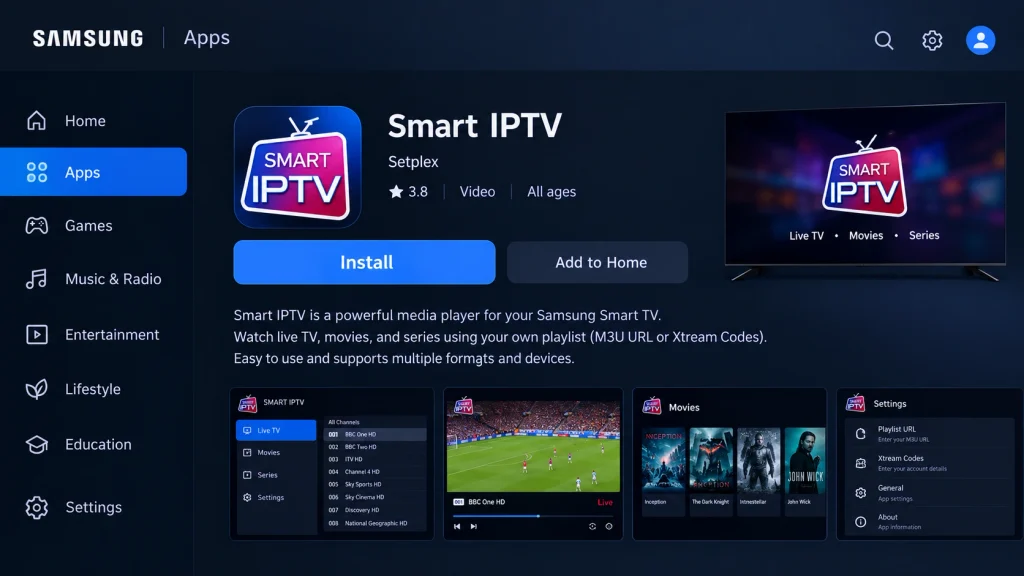
Open the app’s page and select Install. When it finishes, you can open the app right away or add it to your Home screen, as Samsung’s app installation guide explains.
Step 6: Launch the App for the First Time
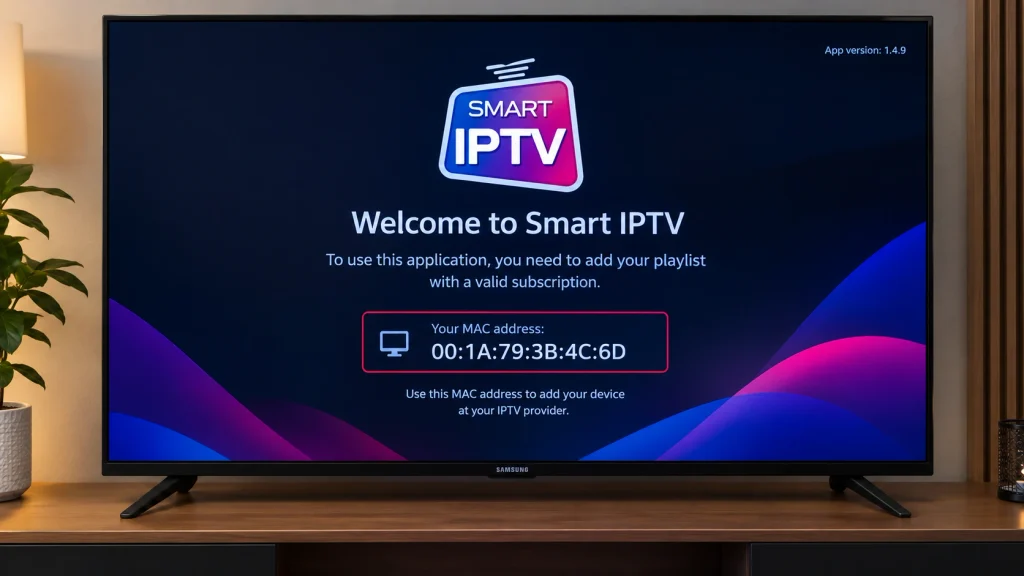
Open the app from your Apps list. Smart IPTV will display your TV’s MAC address, while IPTV Smarters Pro will show a login screen. Continue with the method that matches your app.
Older TV? For 2015–2018 Tizen models, the Smart IPTV Samsung instructions explain how to unzip the app files to the root of a FAT32 USB drive and plug it into the TV. The developer also notes that the app does not run on D-series or older Samsung TVs.
Method A: Load Your Playlist in Smart IPTV (M3U Link)
If Smart IPTV is new to you, our full Smart IPTV setup guide covers its settings in more depth. Here are the Samsung-specific steps.
Step 7: Write Down Your TV’s MAC Address
Copy the MAC address shown on the Smart IPTV start screen, or take a photo of it with your phone.
Step 8: Upload Your M3U Link on the Smart IPTV Website
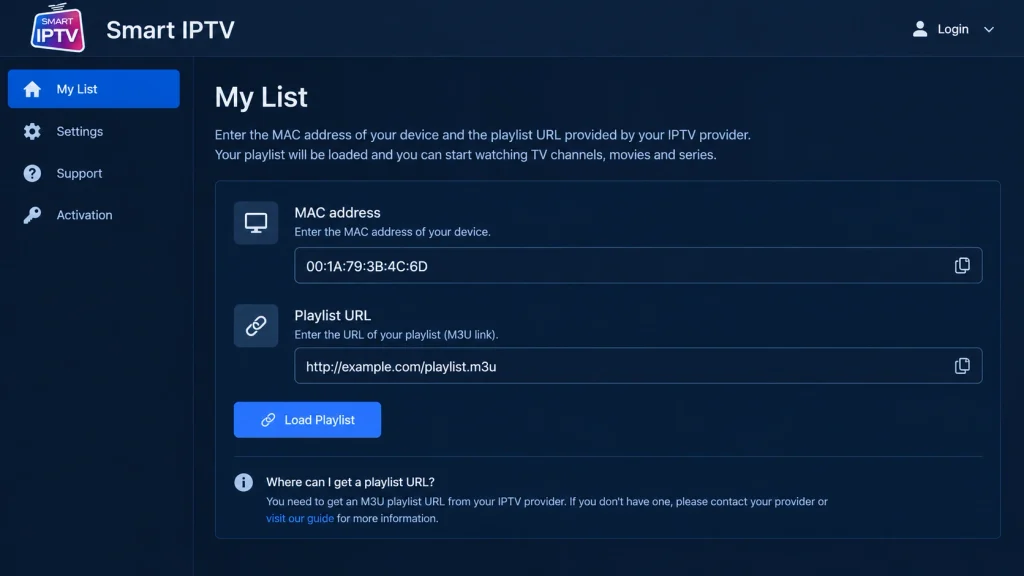
On your phone or computer, open the Smart IPTV My List page, enter your MAC address, paste the M3U URL from your provider, and submit the form.
Step 9: Restart the App to Load Your Channels
Close Smart IPTV on your TV and open it again. Your channel list should load within a minute.
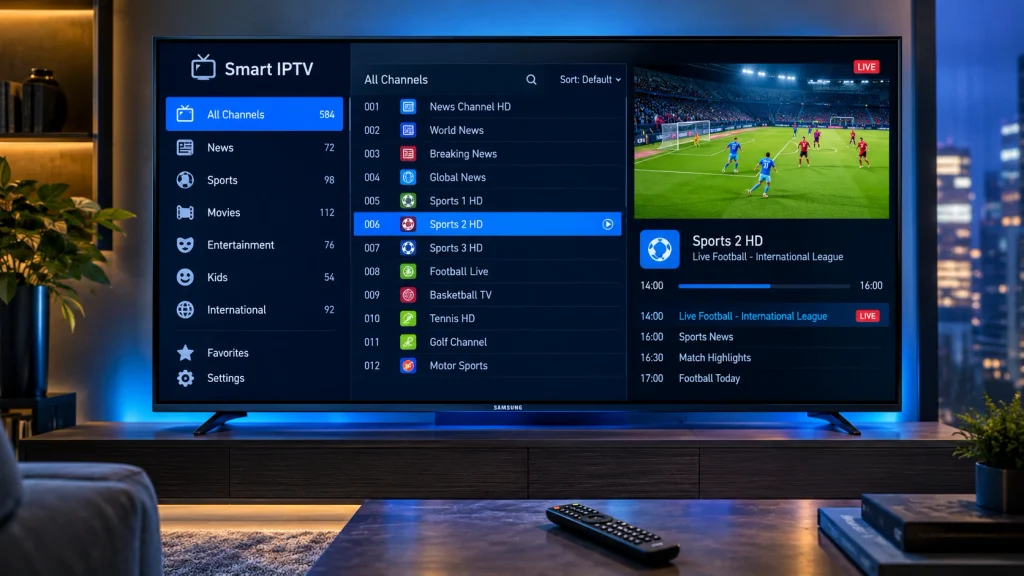
Step 10: Activate Smart IPTV
To keep using the app, pay the one-time activation fee on the developer’s activation page using your MAC address. Only pay once you’ve confirmed your playlist works.
Method B: Log In to IPTV Smarters Pro on Samsung TV (Xtream Codes)
Step 7: Choose the Xtream Codes Login
On the IPTV Smarters Pro welcome screen, select Login with Xtream Codes API.
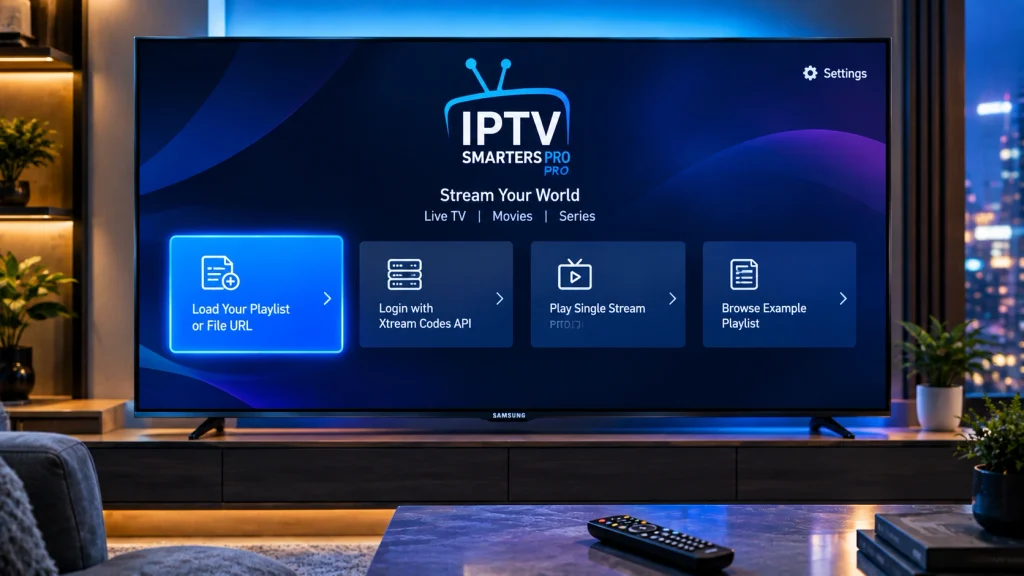
Step 8: Enter Your Subscription Details
Type any playlist name, then enter the username, password and server URL your provider sent you, and select Add User.
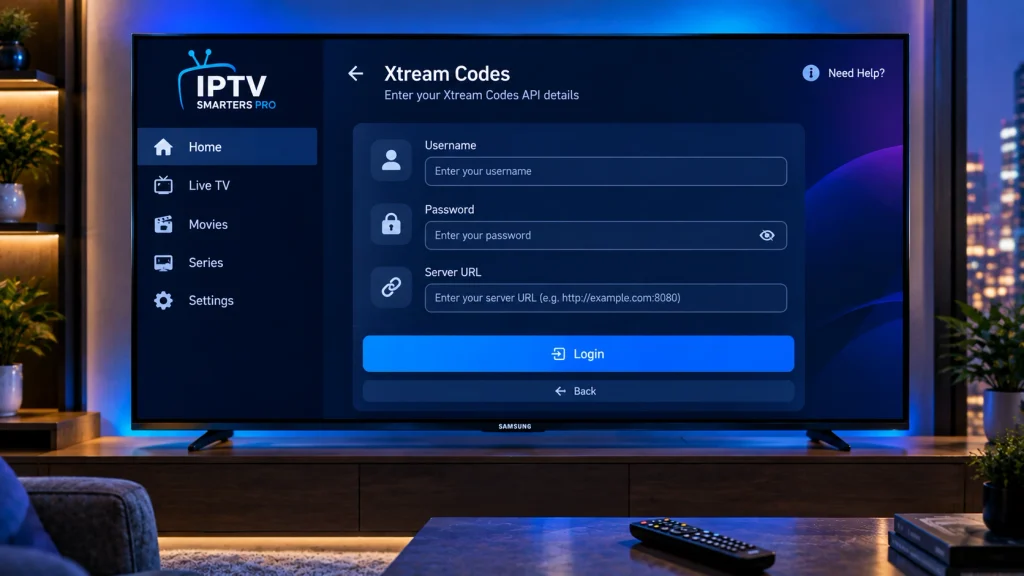
Step 9: Wait for Channels and the TV Guide to Load
The first load can take a few minutes on large playlists. When it finishes, you’ll see the Live TV, Movies and Series sections.
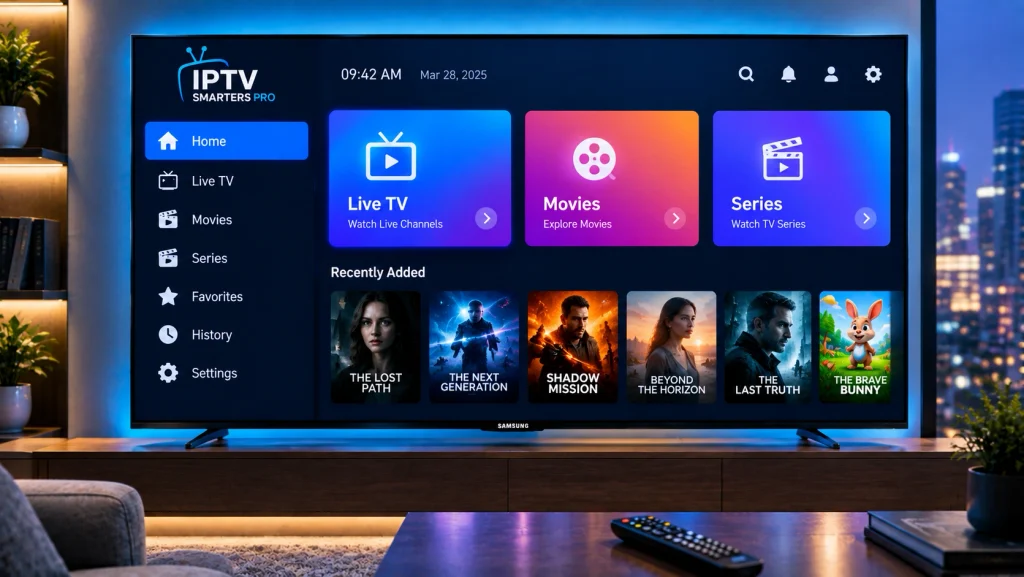
Step 10: Activate the App After the Trial
When the trial ends, follow the in-app activation prompt to keep using IPTV Smarters Pro on your Samsung TV.
Is IPTV Legal on a Samsung TV?
The player apps are legal. They’re simply video players, and both developers state that they don’t supply any channels. Whether your viewing is legal depends on the provider: licensed services have rights to the content they stream, and unlicensed ones don’t. To stay on the right side of that line, choose from the legal IPTV providers we recommend.
Troubleshooting: Fixing Common IPTV in Samsung TV Problems
The IPTV App for Samsung TV Isn’t in the Store
Store listings vary by model year and country. Samsung community threads show users finding IPTV Smarters Pro on one TV but not on a newer one, or seeing only a differently named Smarters app. Try these fixes in order:
- Update your TV software (Step 2), then search again.
- Try an alternative name, such as Smarters IPTV Pro or IPTV Smarters Player.
- On 2015–2018 models, use the USB install method from the developer’s instructions.
- Choose a different player that your store does list.
IPTV Smarters Pro Samsung TV Login Fails
If your details work on a phone but not on your TV, the server URL is usually the problem. The Smarters developer requires providers to register their server with them before it will work on Samsung and LG apps, so ask your provider for their Smarters-approved URL.
“Check Playlist URL” or “No Playlist Uploaded” in Smart IPTV
The Smart IPTV FAQ suggests several fixes:
- Make sure your M3U link is a direct URL (not a redirect) and that it is currently online.
- Unplug the TV from the wall for about a minute to clear its cache.
- Upload a smaller playlist or turn off EPG detection, because TVs have limited app storage.
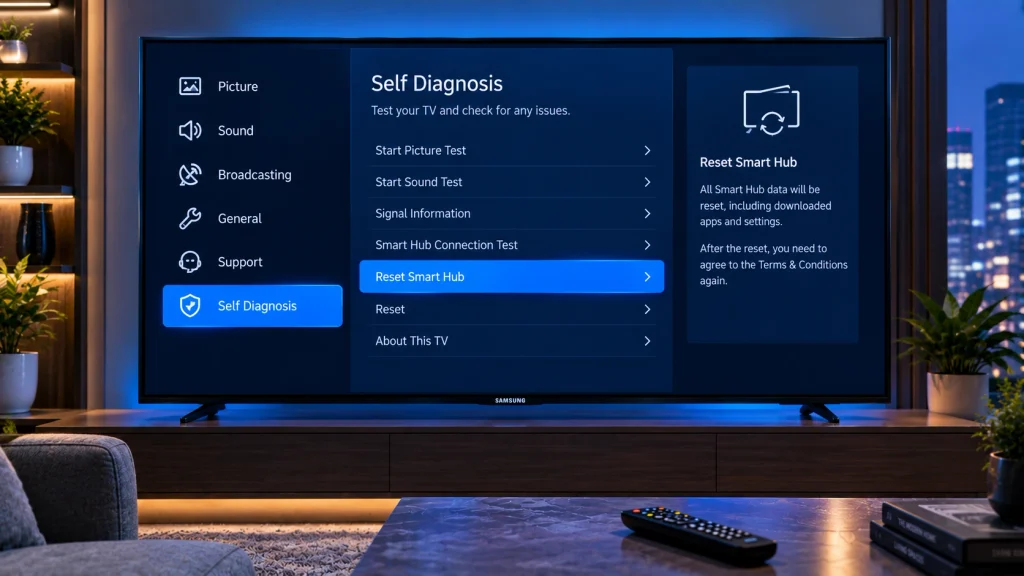
- Reset the Smart Hub.
Follow Samsung’s Smart Hub reset guide for the Smart Hub reset (Settings > All Settings > Support > Device Care > Self Diagnosis on recent models). The default PIN is 0000. Be aware that this signs you out of your apps and removes any apps that didn’t come pre-installed, so you’ll need to reinstall your IPTV player.
IPTV Samsung TV Buffering or “Stream Failed” Errors
Run a speed test on the same network and compare it with the benchmarks in the requirements section. Close other heavy downloads, move the router closer or switch to Ethernet. If your router is the bottleneck, see our picks for the best IPTV router. If only certain channels fail, the stream format may not be supported by your TV, which is something only your provider can fix.
Your MAC Address Changed After Switching to Ethernet
Every TV has two MAC addresses, one for Wi-Fi and one for Ethernet. If you change connection type, re-upload your playlist to the new MAC address shown in Smart IPTV.
The App Website or Service Won’t Load
Some internet providers block IPTV-related sites. The Smart IPTV FAQ suggests changing your TV or router DNS to 1.1.1.1 or 8.8.8.8.
Using a TV Menu in Another Language
The steps are identical worldwide; only the menu labels change. German readers searching for Samsung Fernseher IPTV setup will find Settings labelled Einstellungen. French readers looking for an application IPTV Samsung, or Spanish and Italian readers searching for an app IPTV Samsung, can follow the same path through Smart Hub.
Frequently Asked Questions
Can I get IPTV on my Samsung Smart TV?
Yes. Install an IPTV player such as Smart IPTV or IPTV Smarters Pro from the Samsung app store, then add the playlist or login details from your IPTV provider. Tizen models from 2015 onward are supported, though older ones may need a USB install.
What is the best IPTV app for Samsung Smart TV?
Smart IPTV is best for a simple M3U playlist, while IPTV Smarters Pro is better if your provider uses Xtream Codes and you want separate movie and series sections. Choose whichever one your TV’s store lists and your provider supports.
Is there a free IPTV app for Samsung TV?
Both main players are free to download and try, but they need a paid activation after the trial. Remember that the app only plays content; the channels come from your subscription, and many providers offer short free IPTV trials to test first.
Why can’t I find IPTV Smarters Pro on my Samsung TV?
Availability depends on your TV model, firmware and country. Update your TV software and search for alternative names such as Smarters IPTV Pro, or use Smart IPTV instead if the app isn’t listed.
Final Thoughts on IPTV Samsung Smart TV Setup
Getting IPTV Samsung Smart TV setup right comes down to three things: an updated TV, the right player for your login type, and a reliable connection. Install the app through Smart Hub, load your playlist, and use the troubleshooting tips above if something goes wrong.
Still choosing a service? Compare the top-rated IPTV providers, or if live games are your priority, check our guide to the best IPTV for sports. For deeper app settings, revisit our Smart IPTV app walkthrough.